
In this article, we will discuss how we can understand the Universal Windows platform, prerequisites. setting up the environment, and so on. When I was starting to learn UWP apps, I didn’t have Windows 10 OS, but now I have bought Windows 10 licensed software from the Microsoft store. Now, we will see the steps for designing, developing, building and testing the Universal Windows Platform Apps in Windows 10. We are able to run the UWP Apps with different devices including Desktop, Phone, Xbox and IoT.
Background
Universal Windows Platform (UWP) is a platform homogeneous application architecture created by Microsoft and first introduced in Windows 10. The purpose of this software platform is to help develop Metro style apps that run on both Windows 10 and Windows 10 mobile without the need to be rewritten for each. It supports Windows application development using C++, C#, VB.NET, or XAML. The API is implemented in C++ and supported in C++, VB.NET, C#, F# and JavaScript. Designed as an extension to the Windows runtime platform first introduced in Windows Server 2012 and Windows 8, the UWP allows developers to create applications that will potentially run on multiple type of devices. (source: Wikipedia)
We can easily develop UWP apps with help of API package and run them on all Windows 10 devices including Phone, desktop, tablet and so on. It also supports a number of screen resolutions.
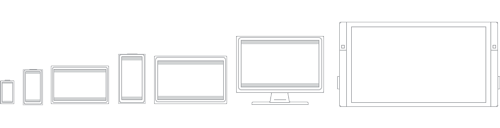
Image source: MSDN
Prerequisites
You have to download the following software and install them on your PC.
<!--[if !supportLists]-->1. <!--[endif]-->Windows 10
<!--[if !supportLists]-->2. <!--[endif]-->Visual Studio 2015
<!--[if !supportLists]-->3. <!--[endif]-->Windows 10 SDK
<!--[if !supportLists]-->4. <!--[endif]-->Windows Phone Emulator 10
You can download and install the free community edition of Visual Studio 2015 from Microsoft Developer portals.
Setting Up the Environment
If you want to know how to install the Window 10 SDK and Windows Emulator, 10 step-by-step guide is available on:
We have discussed Windows 10 SDK features in my previous article.
How to Develop, Build and Run UWP App
We are going to discuss how to develop, build and run the UWP Hello World App and show the demo in multiple devices. We will see the step by step guidelines for the UWP Hello World App creation here.
Step 1
Open Visual Studio 2015. Go to file menu, point to new and then click new project. New Project window will open, you can select a installed template like “Universal” under the Windows on Visual C# Template, and then select a Blank App Universal Windows) and type Project Name UWPHelloWorld. Choose the project location path and then click on the OK button.
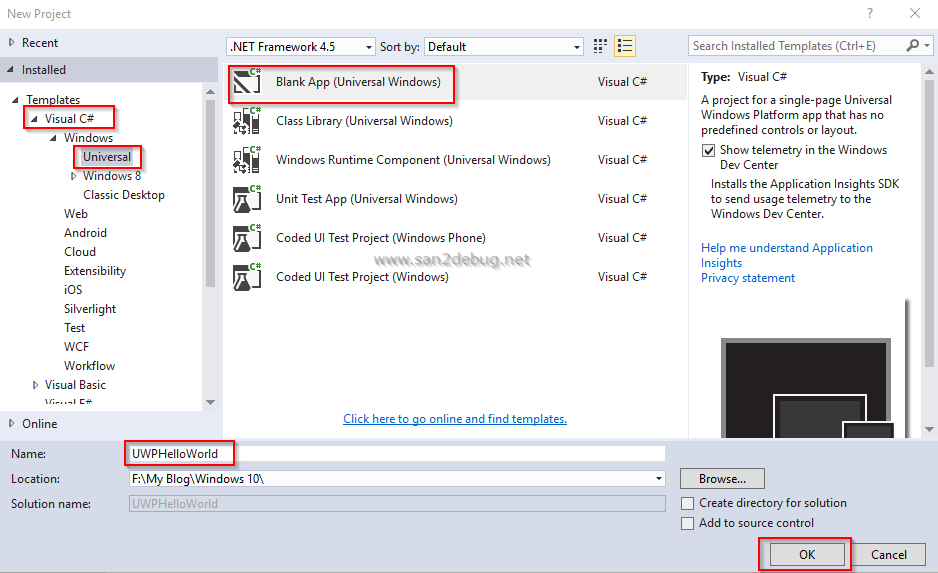
Now, you can see the UWPHelloWorld project structure as in the following screen shot.
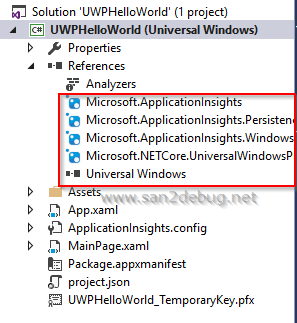
Step 2
Package.appxmanifest: This file contains your app name, description, language, start up page and so on.
Asset folder: This folder contains a collection of images like logo, Windows store logo, splash screen as follows:
ü LockScreenLogo.scale-200.png
<!--[if !supportLists]-->ü <!--[endif]-->SplashScreen.scale-200.png
<!--[if !supportLists]-->ü <!--[endif]-->StoreLogo.png
<!--[if !supportLists]-->ü <!--[endif]-->Square150x150Logo.scale-200.png
<!--[if !supportLists]-->ü <!--[endif]-->Square44x44Logo.scale-200.png
App.xaml and App.xaml.cs: This file contains a constructor that calls the InitializedComponent method and it is an auto generated code by Visual Studio. It is mainly used to initialize the declared elements in the XAML file. It also contains the methods to handle the activation and suspension of the app.
MainPage.xaml and MainPage.xaml.cs: This file contains a user interface (UI) code. The code at the back end is the logic code and event handler code for your app.
Step 3
MainPage.xaml
<Page
    x:Class="UWPHelloWorld.MainPage"
    xmlns="http://schemas.microsoft.com/winfx/2006/xaml/presentation"
    xmlns:x="http://schemas.microsoft.com/winfx/2006/xaml"
    xmlns:local="using:UWPHelloWorld"
    xmlns:d="http://schemas.microsoft.com/expression/blend/2008"
    xmlns:mc="http://schemas.openxmlformats.org/markup-compatibility/2006"
    mc:Ignorable="d">

    <Grid Background="{ThemeResource ApplicationPageBackgroundThemeBrush}">
        <StackPanel Padding="50 50 50 50">
            <TextBlock Name="txtMessage"
            Text="Hello World" FontFamily="Tahoma"></TextBlock>
        </StackPanel>
    </Grid>
</Page>
Step 4
Now, you can run the UWPHelloWorld Apps with different devices, you can see how an app looks, as shown below:
Select a Debug and Mobile Emulator 10.0.10586.0 WVGA4 inch 512 MB option to run the apps.
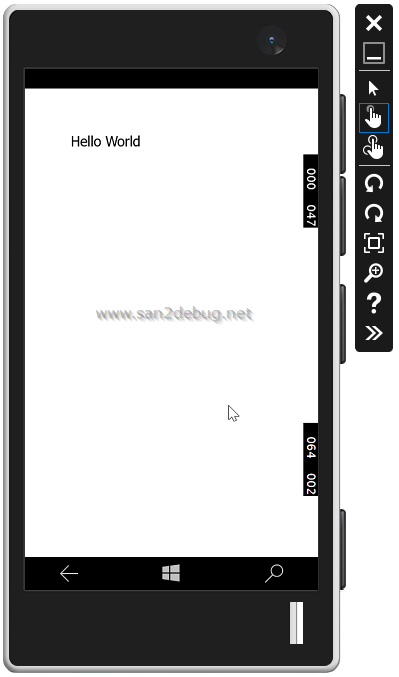
Select a Debug and Local Machine option to run the apps.
