Skip to content
-
Subscribe to our newsletter & never miss our best posts. Subscribe Now!
Technical Personnal Blog

Technical Personnal Blog

Technical Personnal Blog

Technical Personnal Blog

  • Tech
  • Blog
  • Open Source
  • VEGAS
  • CARD
  • Favorite Link
  • Shop
  • Cart
  • Checkout
  • My account
  • Tech
  • Blog
  • Open Source
  • VEGAS
  • CARD
  • Favorite Link
  • Shop
  • Cart
  • Checkout
  • My account
Close

Search

  • https://www.facebook.com/
  • https://twitter.com/
  • https://t.me/
  • https://www.instagram.com/
  • https://youtube.com/
Subscribe
BlogTech

Install IfTop (Bandwidth Monitoring) Tool in RHEL / CentOS / Fedora

By techsupport
October 24, 2014 2 Min Read
Comments Off on Install IfTop (Bandwidth Monitoring) Tool in RHEL / CentOS / Fedora

In our earlier article, we reviewed the usage of TOP Command and it’s parameters. In this article we have came up with another excellent program called Interface TOP (IFTOP) is a real time network bandwidth monitoring tool through Command line. It will show a quick overview of network activities. In a TOP command you can see percentage usage of CPU, Memory and SWAPin real time. But IFTOP shows a real time updated list of network connections based on their network usage ordered on every 2, 10 and 40 seconds average. In this post we are going to see the installation and how to use IFTOP with examples.
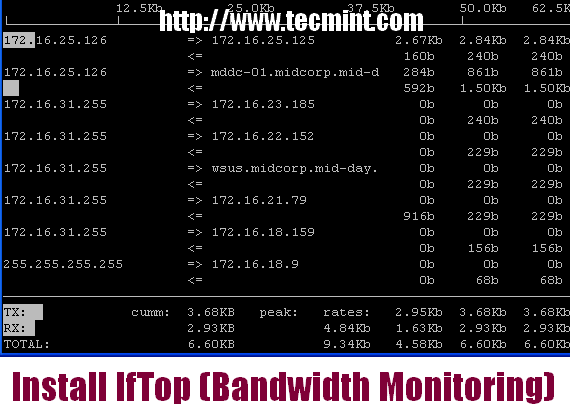
Install iftop in Linux

IFTOP Pre-requisite

  1. libpcap : module provides a user-level network packet capture information and statistics.
  2. libncurses : is a API programming library that enables programmers to provide text-based interfaces in a terminal.

Install libpcap and libncurses

Installation of the libpcap and libncurses library with YUM command as shown below for error-free iftop installation.

# yum -y install libpcap libpcap-devel ncurses ncurses-devel

Download and Install IFTOP

Download iftop from it’s website with Wget command as shown below.

# wget http://www.ex-parrot.com/pdw/iftop/download/iftop-0.17.tar.gz

Follow the below all commands to install iftop.

# tar -zxvf iftop-0.17.tar.gz
# cd iftop-0.17
# ./configure
# make
# make install

Basic usage of Iftop

Once installation done, go to your console and type iftop command.

# iftop

Sample output of iftop command which shows bandwidth of default interface as shown below.
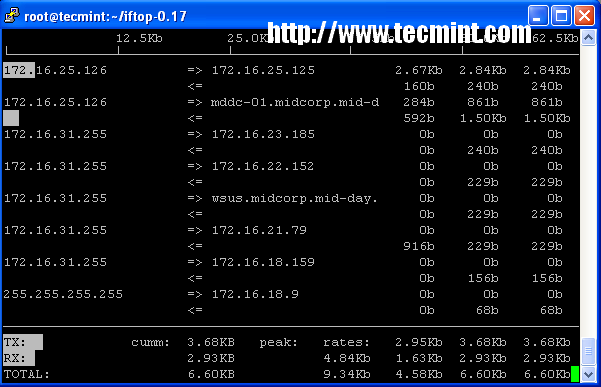
iftop command

Monitoring Specific Interface

You can give a specific interface to monitor with -i option.

# iftop -i eth0
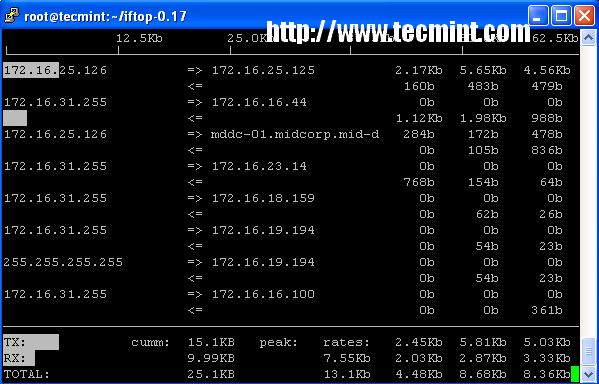
iftop eth0 command

Iftop Options and Usage

While running iftop you can use the keys like S, D to see more information like source,destination etc. Please do man iftop if you want to explore more options and tricks. Press ‘q‘ to quit from running windows.

In this article we have seen how to install and usage of iftop. if you want to know more about it please visit iftop website. Kindly share it and send your comment through our comment box below.

Author

techsupport

Follow Me
Other Articles
Previous

Wix vs Weebly vs Squarespace vs Jimdo – Pros and Cons of Each

Next

20 Command Line Tools to Monitor Linux Performance

Categories

  • Android
  • Blog
  • Favorite Link
  • linux
  • Open Source
  • opencart
  • social
  • Tech
  • Uncategorized

Archives

  • January 2025
  • March 2024
  • August 2023
  • March 2023
  • February 2023
  • November 2021
  • August 2021
  • April 2021
  • March 2021
  • December 2020
  • October 2020
  • September 2020
  • July 2020
  • June 2020
  • May 2020
  • March 2020
  • February 2020
  • January 2020
  • December 2019
  • November 2019
  • September 2019
  • August 2019
  • June 2019
  • October 2018
  • August 2018
  • May 2018
  • April 2018
  • March 2018
  • January 2018
  • December 2017
  • November 2017
  • October 2017
  • September 2017
  • August 2017
  • June 2017
  • March 2017
  • January 2017
  • December 2016
  • November 2016
  • October 2016
  • September 2016
  • August 2016
  • July 2016
  • June 2016
  • May 2016
  • April 2016
  • January 2016
  • December 2015
  • August 2015
  • July 2015
  • June 2015
  • May 2015
  • April 2015
  • January 2015
  • December 2014
  • November 2014
  • October 2014
Copyright 2026 — Technical Personnal Blog. All rights reserved. Blogsy WordPress Theme