https://www.mageplaza.com/kb/how-to-configure-usps-carrier-magento-2.html
Configuring United States Postal Service (USPS) Carier allows you to offer the domestic and intertional shipping services on ground or airway conveniently. This is the service of United States goverment.
Thus, what credentials you need to connect your Magento 2 store to the USPS server. Let check it out in this post. Moreover, we will also guide you in detail about other methods in the topics including UPS, FedEx, and DHL.
To Configure USPS Carrier in Magento 2
- Step 1: Create a USPS Shipping account
- Step 2: Apply USPS
- Step 3: Setup the Packaging Description
- Step 4: Setup Handling Fees
- Step 5: Assign Allowed Methods and Applicable Countries
Step 1: Create a USPS Shipping account
In the first step, you must create a USPS Web Tools account before cofiguring this shipping method. Then you will get a User ID and a link to the USPS test server.
Step 2: Apply USPS
- On the Admin Panel,
Stores > Settings > Configurations. - On the left panel, under
Sales, selectShipping Method. - Open the USPS section:
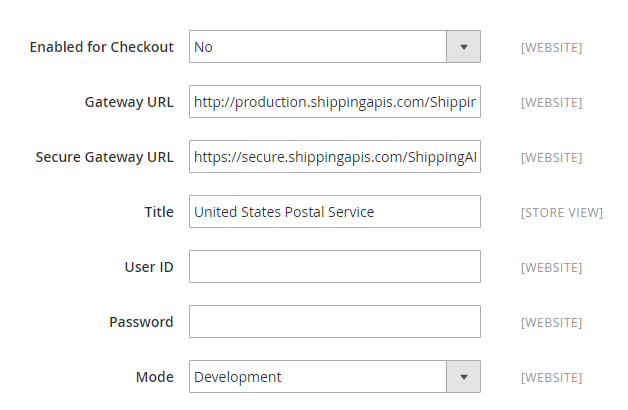
- Accept to enable USPS method by choosing Yes in the
Enabled for Checkoutfield. - Enter
Gateway URLto calculate the USPS shipping rate. The default is ready to use, and doesn’t need changing. - Enter the
Titlefor the name of the shipping method that is shown during the checkout process.
- Accept to enable USPS method by choosing Yes in the
- Copy the
User IDandPasswordfrom your USPS account to Magento configuration. - In the
Modefield, choose one of the following options:- “Development” – Runs USPS in a test environment.
- “Live” – Runs USPS in a live production environment.
If running USPS in the test enviroment, remember to set Mode to live when you come back.
Step 3: Setup the Packaging Description
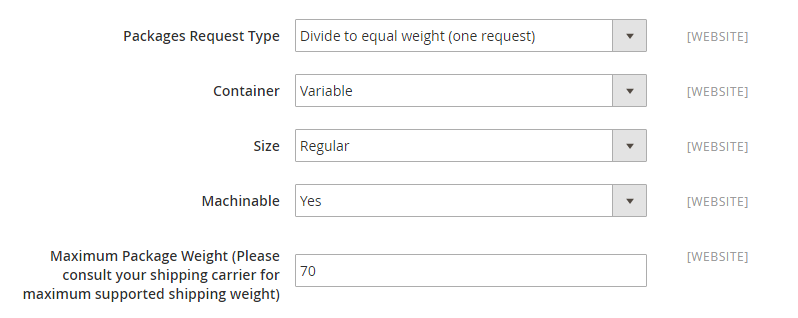
- Select the option you need in the
Package Request Typefield to manage orders that are deliveried as multiple packages as the following:- “Divide to Equal Weight” – The shipment of multiple packages can be submitted as one request if the packages are divided by equal weight.
- “Use Origin Weight” – Multiple packages must be submitted as separate requests if using origin weight as the basis of calculating the shipping cost.
- Set the
Containerto the typical packaging type for the shipment as the following:- Variable
- Flat-Rate Box
- Flat-Rate Envelope
- Rectangular
- Non-Rectangular
- Determine the
Sizethat is acceptable for a package shipment.- Regular
- Large
- Select Yes for the
Machinableif you want your typical packaged to be processed by a machine. - Set the number of the
Maximum Package Weightoption.
Step 4: Setup Handling Fees
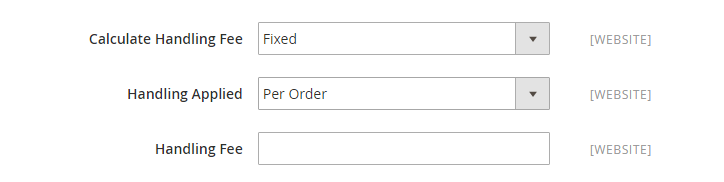
- Set
Calculate Handling Feeto “Fixed” or “Percent”. - In the
Handling Appliedfield, allow specifying how to calculate the handling fee. - Insert the amount of
Handling Fee.
Step 5: Assign Allowed Methods and Applicable Countries
- Choose USPS method offered to your customers from the
Allowed Methodlist. - In the
Free Methodfield, select the USPS service you want to apply free shipping for. - In the
Free Shipping Amount Thresholdfield, set the minimum number of the quantities for free USPS shipping. - Enter a error message in the
Displayed Error Messagebox that will appear if UPS Shipping is not available.
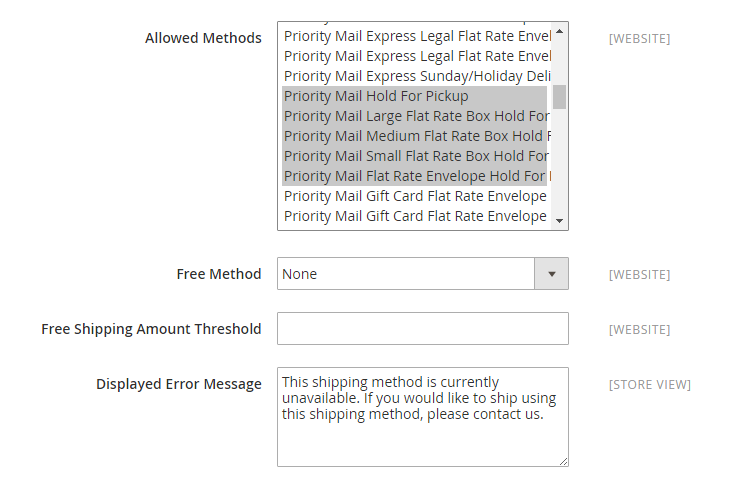
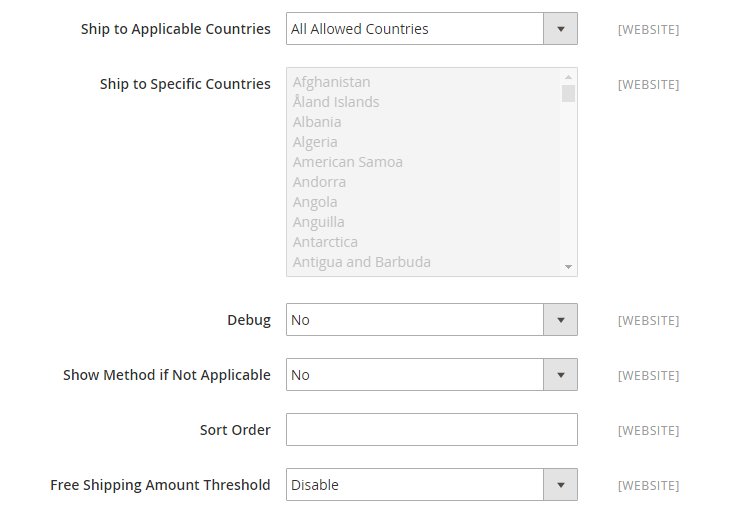
- Set
Ship to Applicable Countriesto one of two options:- All Allowed Countries : USPS Shipping is supported for every country.
- Specific Countries: USPS Shipping is only supported for selected countries.
- Set
Show Method if Not Applicableto Yes if you want to show USPS Shipping all time. - To create a log file with the details of USPS shipments, set
Debugto “Yes”. - Set the
Sort Orderon the Shipping Method on the checkout page. Save Configto finish.